
A Voice-Over Script Template for Clearer Production
Use a voice-over script template to separate spoken words, visuals, timing, and pronunciation notes, with a worked example and a clear handoff checklist.
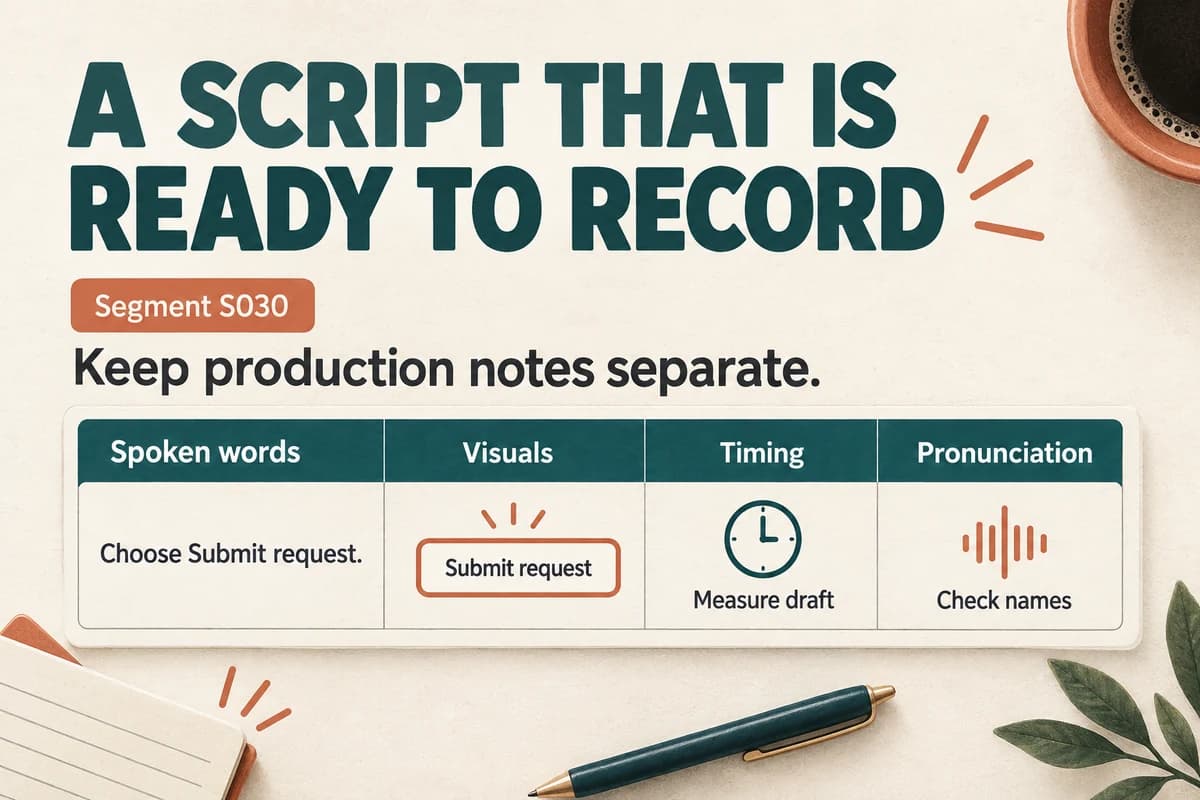
A useful voice-over script template separates the words to be spoken from the information needed to produce them. Give each segment an ID, state what the listener should understand, and keep timing, visuals, pronunciation, and review status in their own fields.
This makes a script easier to generate, record, edit, and revise. It also prevents production notes such as “pause here” or “show logo” from accidentally becoming part of the narration.
Start with a short production brief
Before the script itself, write the project name, audience, purpose, destination, approximate duration, and reviewer.
For a fictional equipment-request tutorial, the brief could read:
- Audience: new employees submitting their first request.
- Purpose: explain the information needed before submission.
- Destination: internal help-center video.
- Tone: calm, direct, and supportive.
- Duration: approximately one minute, subject to a timed draft.
- Approval: operations lead confirms process accuracy.
Add any constraints that affect the writing, such as a fixed end card or interface text that must be named exactly. Avoid vague instructions like “make it engaging.” Describe an observable behavior: “Use short sentences and explain unfamiliar labels on first mention.”
Copy these segment fields
Use a document or spreadsheet with one row per coherent segment. The exact software matters less than keeping the fields consistent.
Segment ID: a stable identifier, such as S010.
Listener purpose: what this passage should make clear.
Spoken words: only the text that should be heard.
Visual or context: what appears on screen, or what surrounds the passage in an audio program.
Timing note: an estimate, a fixed window, or an instruction to measure the first draft.
Pronunciation note: names, acronyms, units, and any approved reading.
Production note: pauses, transitions, music, or editing decisions handled outside the speech text.
Revision and status: source version, reviewer, and approval state.
Stable IDs let you replace S020 without renaming every later segment. Use increments if you expect to insert new scenes, but do not make the naming system more elaborate than the project requires.
Work through a complete short example
Here is a small script for the fictional request tutorial.
S010 — Prepare
Listener purpose: gather the required information.
Spoken words: “Before you request equipment, have three details ready: the item name, the team that will use it, and the date it is needed.”
Visual: the three fields appear in a simple checklist.
Production note: leave enough screen time to read each field.
S020 — Enter the date
Listener purpose: distinguish the needed date from today's date.
Spoken words: “In the Needed by field, enter the date your team needs the item. Use the calendar to check that you have selected the intended day.”
Visual: the date field opens.
Pronunciation note: read the visible field label naturally; do not read quotation marks.
S030 — Review and submit
Listener purpose: check the request before sending it.
Spoken words: “Review the item, team, and date. When those details are correct, choose Submit request. The confirmation screen will show your request number.”
Visual: review screen, then confirmation.
Approval note: verify that the current product actually displays the request number.
The example is intentionally plain. A production script earns its value by preventing ambiguity, not by sounding elaborate on the page.
Edit the spoken column for the ear
Read only the spoken text from start to finish. It should make sense without the production notes.
Replace long noun clusters with clear verbs. “Request completion confirmation” can become “confirmation that your request was submitted,” if that matches the product.
Write numbers and abbreviations in the form you want heard when ambiguity is likely. Keep an official display label in the visual field and a clarified reading in the spoken field.
Check pronouns. “Select it, then move it there” becomes confusing when the listener cannot easily tell which object is being discussed. Repeat the relevant noun when it improves clarity.
Do not assume punctuation or bracketed directions provide precise performance controls. Test the actual audio and use your editor for timing adjustments. If a tool supports documented speech controls, record those decisions separately so the script remains understandable to another producer.
Budget time before final production
Count only the words to be spoken, not headings, comments, or scene notes. Use a measured sample from the intended delivery to estimate duration.
Suppose a sixty-second video reserves eight seconds for an opening visual and an end card. That leaves fifty-two seconds for narration and pauses. A draft that needs seventy seconds of speech will require a writing or editing decision before production.
Use the voice-over length and word-count guide to calculate a planning range. Include time for on-screen actions and unfamiliar terms instead of treating every second as available speech.
Generate or record the most difficult segment first. If that segment contains the product name, a list, and a transition, it can reveal problems that a generic greeting would miss.
Hand off an approved package
Before production, remove unresolved comments from the spoken text and confirm that every segment has a clear status. Keep the approved script version fixed while a producer works from it.
Provide the brief, script, pronunciation notes, reference visuals, and any approved sample. Tell the editor which parts are flexible and which must match a fixed event.
During review, refer to segment IDs and exact wording. “S020: replace ‘today’ with ‘the date your team needs the item’” is actionable. “The middle sounds wrong” is not.
After assembly, use the voice-over quality assurance checklist to compare the exported audio with the approved script. A clean handoff ends with a verified deliverable, not merely a completed text file.
Try one segment in VocalCopyCat, revise what you hear, and keep that approved sample beside the script. It gives the rest of the production a concrete target.
Try Our Voice Clone Demo
Hear your words come to life
Choose a voice and try a short preview.
Listen to sample voices
Hear examples before choosing a voice. Generated results can vary with the script and reference sample.
Looking for another voice?
Explore the library and listen to a sample before you create.

Morgan Freeman

Stephen Hawking

Christiano Ronaldo

Donald Trump

Kokoro

Disney XD Announcer

Cute Japanese Girl
Vin

Adam Stone
Transform Your Content with AI Voice Technology Today
Try a short voice preview, then create speech and save your audio in a workspace built for your next project.
Generate Your Voice Now