
How to Add Accurate Captions to an AI Voice Over
Add accurate captions to AI voice over with a final-audio transcript, careful timing, readable line breaks, and checks for names, numbers, and sound cues.
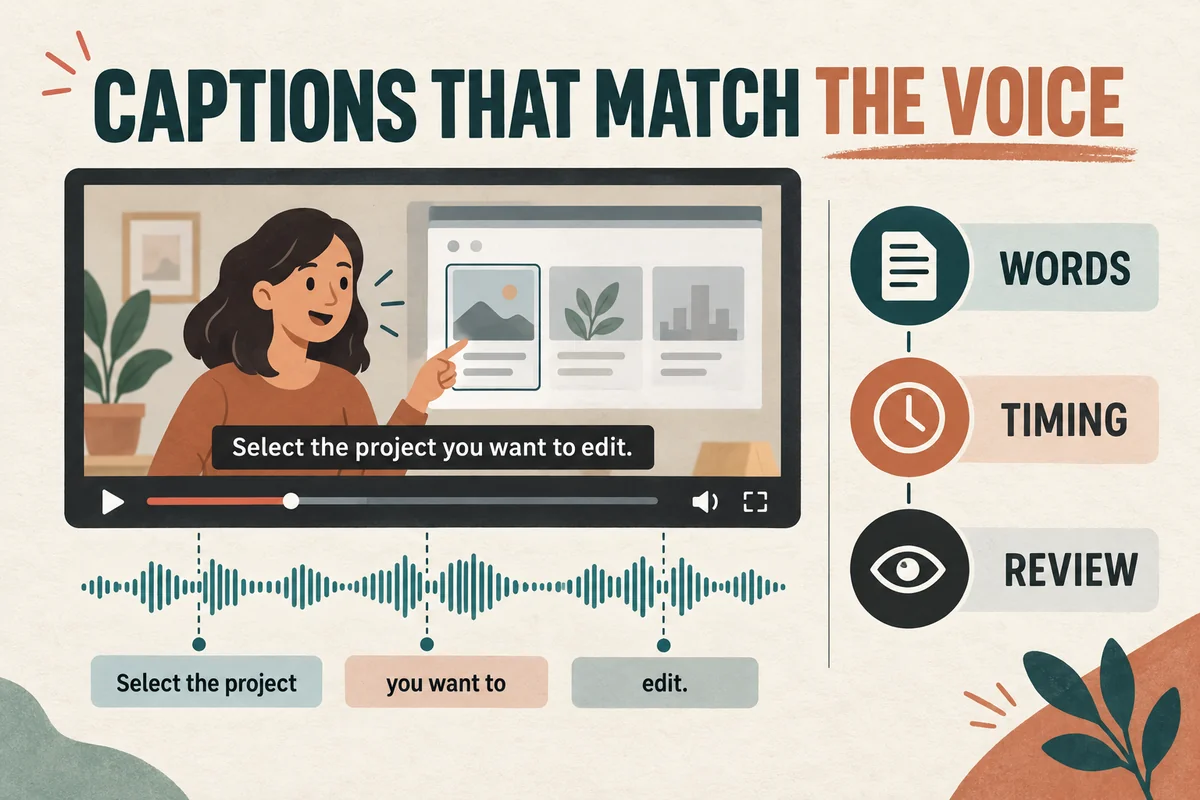
Add captions to an AI voice over after the narration is approved, and verify them against the audio that will actually be published. Start from the script or an automatic transcript, correct the words, adjust the timing, and review the result in the final video layout.
A clean script is a useful starting point, but it is not proof of what the generated voice said. A skipped word, pronunciation workaround, or late edit can make the script and audio differ.
Distinguish captions from decorative text
Captions represent the audible information a viewer needs to follow the video. Decorative headlines and highlighted keywords may support the design, but they do not necessarily provide a complete text equivalent.
W3C's caption guidance includes speech and meaningful non-speech audio in the captioning task. W3C WAI: Captions and subtitles explains the purpose.
If your video contains only narration, the caption track may be straightforward. If it contains several speakers, an important alert sound, or meaningful off-screen audio, include that information where it helps the viewer understand the scene.
Do not fill the captions with irrelevant sound descriptions. The goal is to communicate the content accurately, not to catalog every faint noise in the mix.
Lock the narration before fine timing
Approve the final words and major edits first. You can draft captions earlier, but detailed timing work is easier when the voice track is stable.
Use clear version names for the narration and caption file. “Demo-audio-v3” and “Demo-captions-v3” make a mismatch easier to notice than unrelated filenames.
If you change the narration afterward, review the affected caption and every timestamp that may have shifted. A deleted sentence can move an entire sequence out of alignment.
The voice-over synchronization guide helps establish the finished timing before this step. Treat captions as part of the same production, not a separate task completed from an outdated script.
Build a transcript from what is actually spoken
Start with the approved script, then listen and correct it. Alternatively, use an automatic transcript as a draft and review every line.
Keep conventional spelling for names and terms. If the generation text used “A P I” to guide pronunciation, your captions can normally use “API.” A phonetic spelling created for the voice should not automatically appear on screen.
Check numbers against the meaning as well as the sound. If the voice says “two point five kilograms,” make sure the caption does not display “twenty-five kilograms.”
Use the numbers, dates, and acronyms guide to maintain consistency. This is especially useful when the script mixes prices, product versions, and dates.
If the generated audio contains a mistake that changes the meaning, repair the audio first. Do not use a correct caption to conceal an incorrect spoken instruction.
Choose a delivery format that fits the destination
A separate caption file allows a compatible player to display captions as a selectable track. Burned-in captions become part of the video image. A project may need one or both, depending on where it will be used.
Common caption files contain text plus timing information. Use your editor's supported export format and the destination's documented requirements rather than manually changing file extensions.
For YouTube, the available workflows include uploading a caption file or adding captions in its editing interface. Check YouTube's caption instructions for current options.
Keep an editable caption master even if your final deliverable uses burned-in text. A later correction is much easier when you still have the caption content and timestamps.
Break lines around meaning
Divide captions into readable phrases. Avoid separating a person's first and last name, an article from its noun, or a number from its unit when you can keep them together.
For example, prefer a break like:
Select the project
you want to edit.
over:
Select the
project you want to edit.
The best arrangement also depends on font size and available width. Review the actual video rather than applying a rigid line-break rule without looking.
Avoid placing too much text on screen at once. If a caption feels rushed, check whether the speech itself is crowded or whether the cue can be divided at a natural phrase boundary.
Do not shorten a caption so aggressively that it changes the message. Readability and accuracy need to work together.
Match timing and protect important visuals
Start each cue close to the corresponding speech and end it when that thought is finished, with enough time to read naturally. Watch for captions that appear long before the spoken line or linger into an unrelated scene.
Check where the text sits. It should not hide the button, chart label, or object being explained. A beautiful caption style can still make a tutorial harder to use if it covers the task.
Review on a smaller screen when the video is intended for mobile viewing. Check text size, contrast, and any overlap with interface controls in the destination player.
If speakers change, identify them when the visual context does not make the change clear. Keep labels concise and consistent.
Perform three final review passes
First, watch with audio and captions together. Confirm exact words, names, numbers, and timing.
Second, watch without sound. Check whether captions and visuals provide a coherent experience and whether meaningful sound information is missing.
Third, open the exported deliverable or uploaded preview. Confirm that the intended caption track appears, the language label is correct, and the text remains readable in the real player.
For a complete publishing workflow, use the YouTube AI voice-over guide.
Can I trust automatic captions? Treat them as a draft. Review the actual final audio and correct mistakes before publishing.
Are captions the same as a transcript? A transcript is generally read as a document; captions are timed to playback. W3C explains the distinction in its transcript guidance.
Do burned-in captions replace every accessibility feature? No. Review the whole video's needs, including meaningful visual information that the narration may not describe.
Try Our Voice Clone Demo
Hear your words come to life
Choose a voice and try a short preview.
Listen to sample voices
Hear examples before choosing a voice. Generated results can vary with the script and reference sample.
Looking for another voice?
Explore the library and listen to a sample before you create.

Morgan Freeman

Stephen Hawking

Christiano Ronaldo

Donald Trump

Kokoro

Disney XD Announcer

Cute Japanese Girl
Vin

Adam Stone
Transform Your Content with AI Voice Technology Today
Try a short voice preview, then create speech and save your audio in a workspace built for your next project.
Generate Your Voice Now