
AI Voice Over for YouTube Videos: A Practical Workflow
Create clear AI voice over for YouTube with a useful script, consistent narration, scene timing, captions, and a complete playback review before publishing.
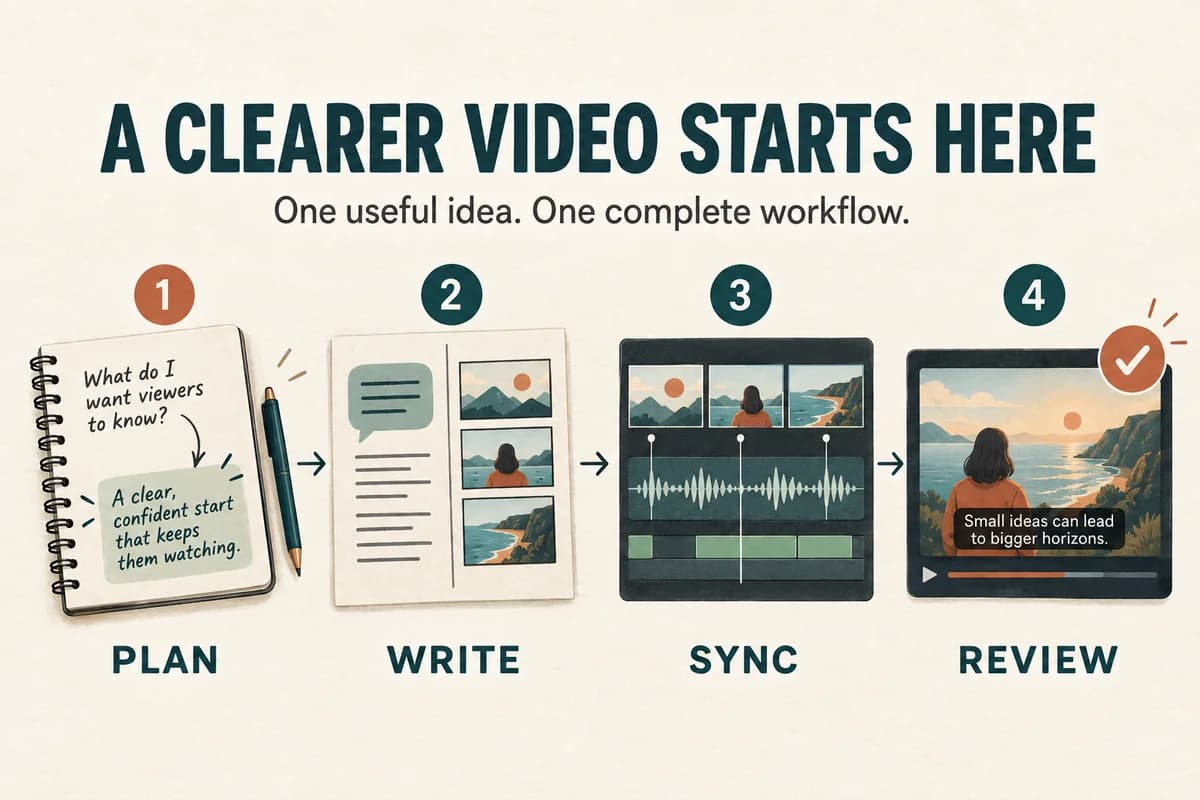
A useful AI voice over for YouTube begins with a video that answers a real question. Write the explanation, map it to the visuals, generate a consistent narration, and review the complete video with captions before publishing. Voice generation saves a recording step; it does not replace research, editing, or a clear point of view.
The workflow below suits tutorials, explainers, demonstrations, and other videos where narration supports something worth showing.
Plan the viewer's result
Write one sentence describing what the viewer should understand or be able to do by the end. “Choose a clean reference recording” is more actionable than “learn about audio.”
Then outline three or four steps that deliver that result. Remove sections that do not help. A long introduction about the channel is rarely necessary before the viewer understands what the video will solve.
Gather the actual materials before finalizing the narration: screen recordings, original examples, photographs, diagrams, or demonstrations. Use assets you have permission to publish.
If the video explains a process, perform that process yourself or verify it against reliable documentation. Do not write steps around a screen you have not checked. The narration should describe what the viewer will actually see.
Build a two-column script
Separate the spoken line from the visual instruction. This prevents notes such as “zoom here” from entering the speech generation text.
| Visual | Narration |
|---|---|
| Show two labeled audio waveforms | “These recordings contain the same sentence.” |
| Play the noisy version | “In the first, the fan competes with the voice.” |
| Play the cleaner version | “In the second, the words are easier to follow.” |
| Show the changed microphone position | “Start by changing the recording setup.” |
The example makes a specific point and supplies evidence within the video. It does not depend on a broad claim that one tool always sounds better.
Read the narration aloud and remove language that merely repeats visible labels. Use the voice to explain meaning, sequence, or a decision the viewer should make.
For a condensed version of this method, see short-form voice-over scripts.
Choose a voice using representative text
Test the voice on a passage from the middle of the video, including any specialist terms. A dramatic opening may not reveal whether the voice can handle a calm explanation.
Listen for clear pronunciation, a suitable pace, and a tone that fits the channel. Keep the voice consistent across the episode unless there is a purposeful reason to introduce another speaker.
Use your own voice or an authorized voice reference when cloning. Keep a record of permissions and project expectations when working with a collaborator.
Try a short script in VocalCopyCat before creating the full track. Work with the options present in the editor; do not assume that a control mentioned in another service's tutorial exists in your current tool.
Generate in sections and assemble around meaning
Break the script into coherent sections rather than arbitrary word counts. A complete demonstration step or explanation is a useful unit for review and replacement.
Name the generated files by scene, such as “01-opening,” “02-example,” and “03-recap.” Keep the approved text beside each file so a later revision is easy to locate.
Put the narration on the video timeline and align the important words with the relevant actions. A viewer should not hear “choose the blue button” while the screen has already moved to another page.
When a scene runs long, remove redundant wording before increasing speaking speed. When narration ends early, use the remaining time to let the viewer inspect the result. See how to sync voice over to video for a detailed timing method.
Mix for understanding and add captions
Listen to the voice alone before adding music. Then bring in music at a level that supports the video without competing with the words.
Check quiet sentences, word endings, and moments when sound effects occur. A mix that feels exciting through headphones can still obscure instructions on a small speaker.
Add captions based on the final narration. YouTube supports several caption workflows, including uploading a file and entering text; consult YouTube's caption instructions for the current interface.
Review every caption rather than assuming automatic text is correct. Names, product labels, and numbers deserve special attention. The AI voice-over caption guide covers timing and readability.
Review the title, disclosure, and whole video
Use a title and thumbnail that accurately represent the video. If you promise a comparison, include an actual comparison. If you promise a tutorial, show the necessary steps.
Check the platform's current guidance for synthetic or altered content before publishing. YouTube explains its disclosure system in How this content was made. Whether a particular upload needs a disclosure depends on its content and the current rules.
Do not treat an AI voice as a guarantee of monetization or as a shortcut around content policies. The video's usefulness, originality, rights, and presentation all deserve review.
Watch the complete export at normal speed. Check the first and last seconds, scene changes, caption coverage, and any claims that a viewer might act on.
Keep a reusable production checklist
Save the script, source links, approved narration, caption file, and final export together. That makes later corrections far easier than rebuilding the video from a single finished file.
Before publishing, confirm that the video delivers its opening promise, the voice matches the visuals, the captions match the audio, and links in the description point to the intended resources.
Can I make a video without appearing on camera? Yes. Original demonstrations, diagrams, screen recordings, and clear narration can carry the explanation.
Should every second contain narration? No. A brief pause can let the viewer read, compare, or follow an action. Leave useful space.
Can I reuse one narration for several videos? Reuse only when it genuinely fits the new video. Check that the spoken context, visuals, and captions still make sense together.
Try Our Voice Clone Demo
Hear your words come to life
Choose a voice and try a short preview.
Listen to sample voices
Hear examples before choosing a voice. Generated results can vary with the script and reference sample.
Looking for another voice?
Explore the library and listen to a sample before you create.

Morgan Freeman

Stephen Hawking

Christiano Ronaldo

Donald Trump

Kokoro

Disney XD Announcer

Cute Japanese Girl
Vin

Adam Stone
Transform Your Content with AI Voice Technology Today
Try a short voice preview, then create speech and save your audio in a workspace built for your next project.
Generate Your Voice Now