
How to Fix AI Voice Artifacts, Clicks, and Missing Words
Troubleshoot AI voice clicks, buzzing, missing words, and abrupt changes with a repeatable process that separates script, source, generation, and export issues.
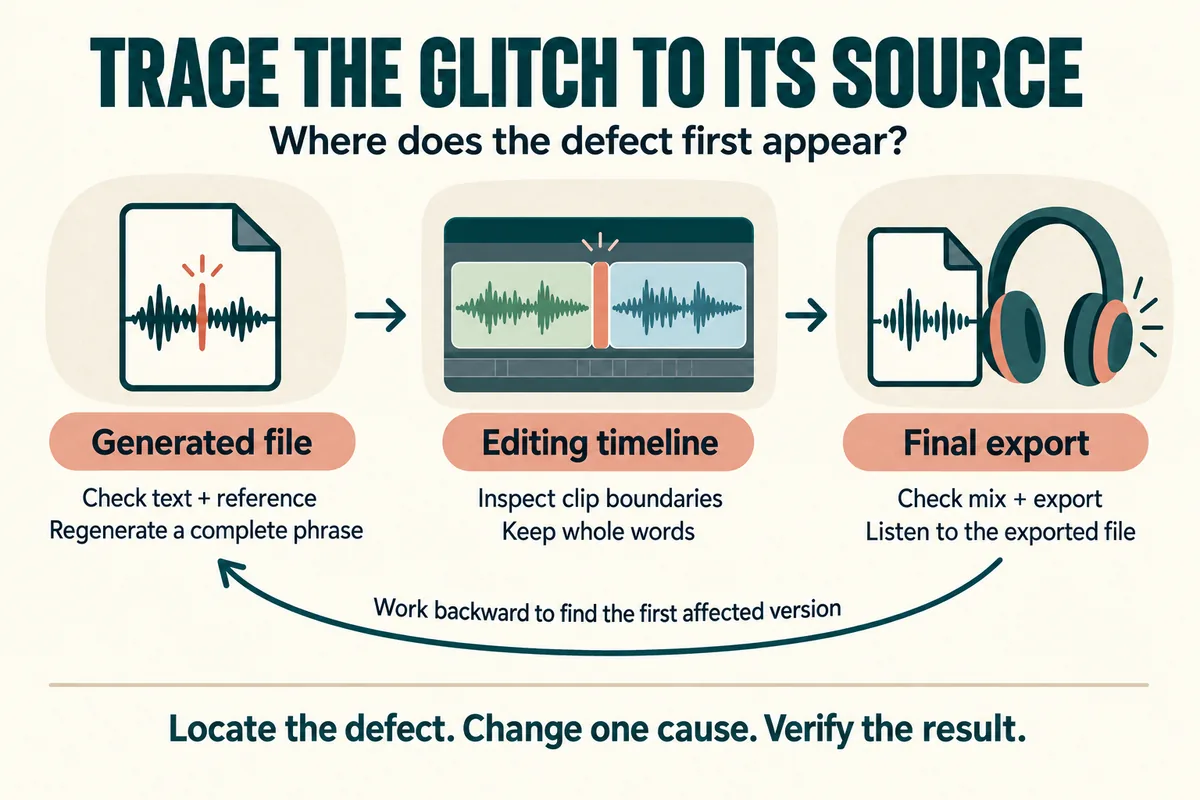
To fix an AI voice artifact, first locate the defect and identify when it appears. Check the original generated file, the edited timeline, and the final export separately. Then change one likely cause at a time: the sentence, the reference recording, the generated segment, or the edit.
Clicks, missing words, robotic buzzes, and sudden tone changes are not all the same problem. A replacement generation may fix one issue, while a bad edit point or overloaded mix needs work in the editor.
Describe the defect precisely
Write the timestamp and a short description before trying a repair. “Click before ‘save’ at fourteen seconds” is a useful note. “Audio sounds bad” is too broad to guide a test.
Separate what you hear into a few practical categories:
- A word is pronounced incorrectly.
- A word or syllable is missing.
- A brief click or pop appears.
- A sustained buzz or rough texture covers part of a phrase.
- The voice changes tone between segments.
- Speech is clean alone but distorted in the final mix.
A pronunciation error belongs in the pronunciation workflow. The word may be acoustically clear even though it is linguistically wrong.
If possible, listen on a second playback device. A defect that occurs only through one speaker or one application may not be embedded in the file. Keep your investigation anchored to the actual exported audio.
Find the earliest version containing the problem
Work backward through the project. Open the final video, then the audio export, then the original generated segment. Listen at the same point in each.
If the original is clean but the final video clicks, investigate the timeline or export. If the original already contains the click, investigate the generation or source reference.
This simple comparison prevents unnecessary regeneration. It also keeps you from adding cleanup effects to compensate for a problem introduced by a later edit.
Save a copy before making changes. Preserve the defective segment with a clear label until the replacement is approved; it gives you something concrete to compare against.
For a repeatable check, create a small issue log with timestamp, spoken phrase, first affected file, attempted fix, and result. A few rows are enough for most projects.
Regenerate a complete thought
When the defect exists in generated speech, try regenerating the affected sentence with a little surrounding context. Replacing a single syllable is often harder to blend naturally than replacing a complete phrase.
First verify that the input actually contains the missing word. Then remove accidental symbols, broken formatting, duplicated text, or editing notes that should not be spoken.
If the sentence is unusually long or dense, split it into two clear thoughts. Keep the meaning intact. For example:
Before you export the final video, which includes the revised captions and updated closing frame, check the audio.
can become:
Check the audio before you export the final video. Make sure the revised captions and updated closing frame are included.
Generate the replacement with the same selected voice and comparable context. Evaluate the whole phrase, not only the original problem spot.
Inspect the reference without overprocessing it
If you are using a reference recording, listen to that source directly. Check for music, another speaker, distortion, or strong room sound. A flawed reference is worth correcting before making many more outputs.
Do not assume every generated defect comes from the reference. Treat it as one possible cause and compare a controlled test.
If there is mild steady background noise, use the conservative process in removing noise from voice recordings. Heavy processing can create additional problems; Audacity's manual describes unwanted tonal artifacts that can appear during noise reduction. Audacity noise reduction guidance.
When possible, compare with a fresh, clean reference recorded in a stable position. Use the same test sentence so you can evaluate whether changing the source actually helps.
Check edit boundaries and mixed levels
A click that appears exactly where two clips meet suggests checking the boundary. Make sure neither clip begins or ends halfway through a spoken sound. Leave enough room for the complete word.
In an audio or video editor, a very short fade at a clean boundary can be worth testing. Listen carefully: a fade that removes the click but softens the first consonant is not a good repair.
If two clips overlap, check whether the same phrase briefly plays twice. A tiny overlap can sound like a strange doubling rather than an obvious repeat.
For distortion that appears only in the full mix, listen to narration, music, and effects separately. Reduce the combined level where necessary and export another short test. Lowering a file that was already distorted at generation is a different issue and will not establish that the source has been repaired.
Match the replacement to neighboring speech
A technically clean sentence can still stand out if its pace or delivery differs from the surrounding passage. Listen from the previous sentence through the following one.
Check whether the replacement starts abruptly, ends too quickly, or changes the apparent distance of the speaker. Sometimes a longer replacement passage is easier to match than a tiny repair.
Avoid adding music to disguise an obvious mismatch. Resolve the narration first, then judge the whole production.
The guide to more natural AI narration can help when the remaining problem is phrasing rather than a technical defect. Keep the difference clear in your issue log so you choose the right next action.
Verify the exported result and close the issue
Export the corrected section and open that actual file. Confirm that the defect is gone, the words remain complete, and no new problem appears at the replacement boundaries.
Then review the full deliverable once. Local repairs can shift timing, captions, or later edits even when the repaired sentence sounds fine.
Should I regenerate the entire project? Usually start with the affected passage. A smaller test is faster to compare and preserves approved sections.
Can a filter fix every buzz? No. The cause matters, and aggressive filtering can damage speech. Compare against a replacement generation or cleaner source.
When should I stop troubleshooting? Once the problem is resolved in the exported file and the passage fits its context. Save the approved version and the short note explaining the successful fix.
Try Our Voice Clone Demo
Hear your words come to life
Choose a voice and try a short preview.
Listen to sample voices
Hear examples before choosing a voice. Generated results can vary with the script and reference sample.
Looking for another voice?
Explore the library and listen to a sample before you create.

Morgan Freeman

Stephen Hawking

Christiano Ronaldo

Donald Trump

Kokoro

Disney XD Announcer

Cute Japanese Girl
Vin

Adam Stone
Transform Your Content with AI Voice Technology Today
Try a short voice preview, then create speech and save your audio in a workspace built for your next project.
Generate Your Voice Now