
How to Make an AI Voice Sound More Natural and Clear
Make AI narration sound more natural by rewriting for speech, choosing a consistent delivery, improving pauses, and reviewing short passages before export.
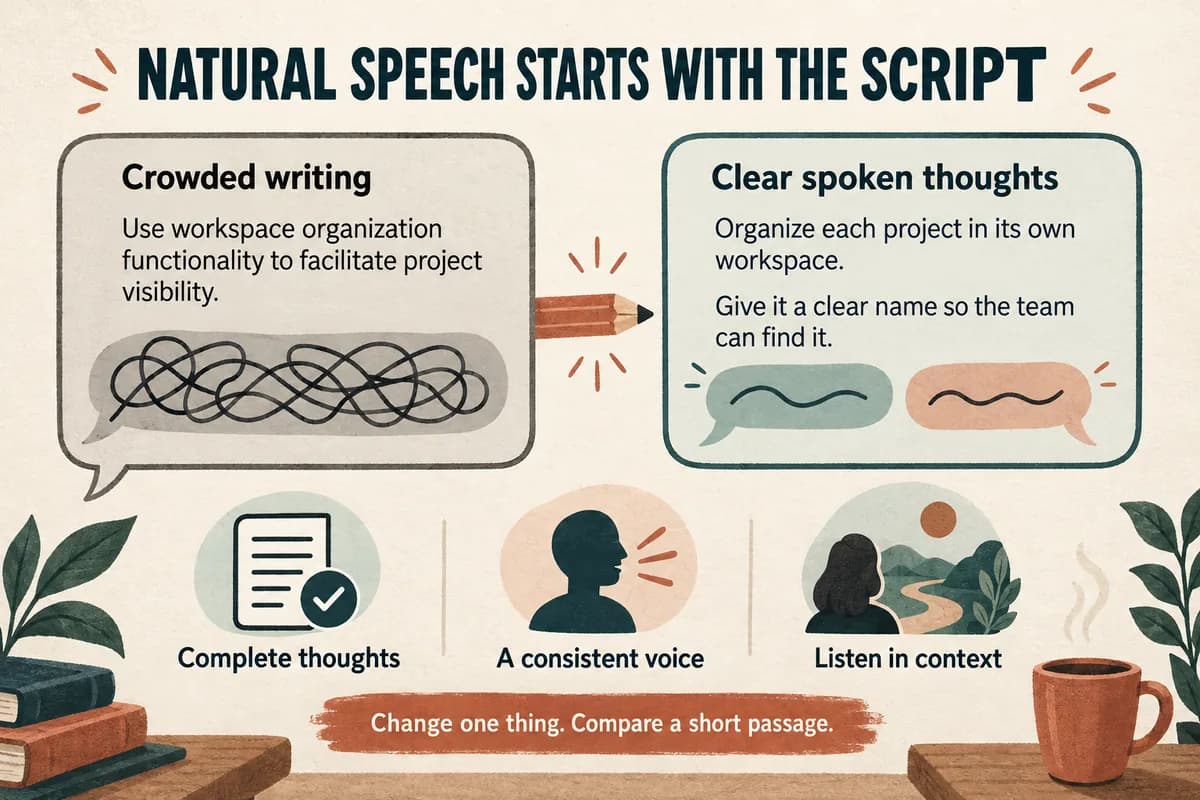
To make an AI voice sound more natural, start with the script. Use language someone would comfortably say, organize sentences around complete thoughts, and choose a delivery that fits the situation. Then generate short passages and listen for specific problems before adjusting anything else.
Naturalness is not a single effect you add at the end. A clear voice reading a crowded paragraph can still feel awkward. A simple rewrite often does more for the result than repeatedly changing voices.
Define what natural means for this project
A warm lesson, a brisk product demo, and a reflective story need different pacing. Choose a target in ordinary language: “A patient colleague explaining the next step,” or “A friendly host introducing a short example.”
Avoid a vague brief such as “more human.” It gives you no useful way to choose between two versions. Instead, describe the behavior you want: fewer rushed transitions, clearer emphasis, or a calmer ending.
Read one paragraph aloud yourself, without trying to imitate the generated voice. Where do you naturally pause? Which words carry the point? Where does the sentence become difficult to finish in one comfortable thought?
The existing article on the elements of realistic speech synthesis explores the broader subject. Here, the focus is the editing decisions you can make in a real project.
Rewrite page language into spoken language
Written prose often packs several ideas into one sentence. Listeners cannot scan backward as easily as readers, so make the sequence explicit.
Before:
The platform's configurable workspace organization functionality enables users to facilitate improved project visibility across multiple ongoing initiatives.
After:
Organize each project in its own workspace. Give the workspace a clear name so the team can find it later.
The second version says what someone should do and why. It also gives the voice two complete thoughts to deliver.
Replace long introductions with the useful point. “It is important to note that you have the ability to…” can usually become “You can…” Read every sentence and ask whether the opening words help the listener.
Use contractions when they fit your brand and audience. “You don't need to change this setting” may sound more conversational than “You do not need to change this setting,” but the formal version can be appropriate too. Consistency matters more than forcing casual language everywhere.
Build rhythm with sentence structure
Mix short statements with slightly longer explanations. A script made entirely of short sentences can sound clipped; a script made entirely of long sentences can sound breathless.
Try this sequence:
Start with one scene. Choose the line that explains what the viewer needs to do, then remove anything that repeats the screen. Play the scene again. Does the instruction arrive before the action?
The rhythm comes from the meaning. You do not need to insert dramatic pauses after every few words.
Use punctuation normally first, then test a revision if a pause feels wrong. The punctuation guide includes examples for lists, questions, and sentence breaks.
Avoid filling the script with ellipses, repeated exclamation marks, or stage directions. Their interpretation varies by tool, and they can produce an unintended style or be spoken aloud.
Choose a consistent voice and reference
If you are using your own reference recording, choose one that matches the intended delivery. A sample made while whispering is a poor editorial starting point for an energetic explainer, regardless of the subject.
Compare a few short outputs using the same paragraph. Listen for clarity, appropriate tone, and whether the voice handles your actual vocabulary. Do not choose only from a dramatic introductory sentence that differs from the rest of the project.
Once you have a suitable voice, keep it stable while editing the script. Changing voice, phrasing, and speed together makes it difficult to know which change helped.
Use VocalCopyCat to try a short passage before building the full narration. Check the controls available in the current editor rather than assuming that a particular emotion, speed, or pronunciation feature exists.
Fix the most distracting problem first
Write one note after each listen. “The second sentence rushes the three steps” is actionable. “Still sounds AI” is not.
Use the smallest relevant fix:
- A crowded list may need separate sentences.
- A mispronounced name needs a pronunciation check.
- A flat introduction may need a clearer point.
- A sudden change in sound may need a replacement segment.
- A click or missing syllable may be an audio defect.
Use the pronunciation workflow for difficult terms. If the words are correct but the audio itself contains glitches, use artifact troubleshooting.
Do not try to hide unclear speech under music. Listen to the narration alone first, then check it again in the final mix.
Compare complete passages at a fair volume
A sentence can sound good by itself and still feel wrong between its neighbors. Review the transition into the sentence, the sentence itself, and the transition out.
Keep alternate takes organized. Name them by the meaningful change: “shorter-opening,” “expanded-acronym,” or “split-list.” This is easier to evaluate than “version-seven.”
Ask a listener one focused question. “Can you follow the three steps without seeing the script?” is more useful than asking whether the voice is perfect. For a tutorial, understanding the instruction is the success criterion.
Stop revising when the message is clear, the important words are correct, and the delivery fits the project. Endless random changes can undo an approved result.
Questions about natural AI narration
Should I add filler words such as “um”? Only when they serve the script. Random fillers can distract and may create a mannerism you did not intend.
Will slowing everything down help? Sometimes a passage needs more space, but the first fix may be fewer words or better sentence boundaries. Test the actual issue.
Should I remove every pause? No. Pauses give ideas room to land and can help a viewer follow an action. Keep the pauses that support meaning and revise the ones that interrupt it.
Try Our Voice Clone Demo
Hear your words come to life
Choose a voice and try a short preview.
Listen to sample voices
Hear examples before choosing a voice. Generated results can vary with the script and reference sample.
Looking for another voice?
Explore the library and listen to a sample before you create.

Morgan Freeman

Stephen Hawking

Christiano Ronaldo

Donald Trump

Kokoro

Disney XD Announcer

Cute Japanese Girl
Vin

Adam Stone
Transform Your Content with AI Voice Technology Today
Try a short voice preview, then create speech and save your audio in a workspace built for your next project.
Generate Your Voice Now