
Remove Background Noise From Voice Recordings Carefully
Learn how to reduce hiss, hum, and interruptions in voice recordings, compare before and after audio, and decide when a fresh take will sound better.
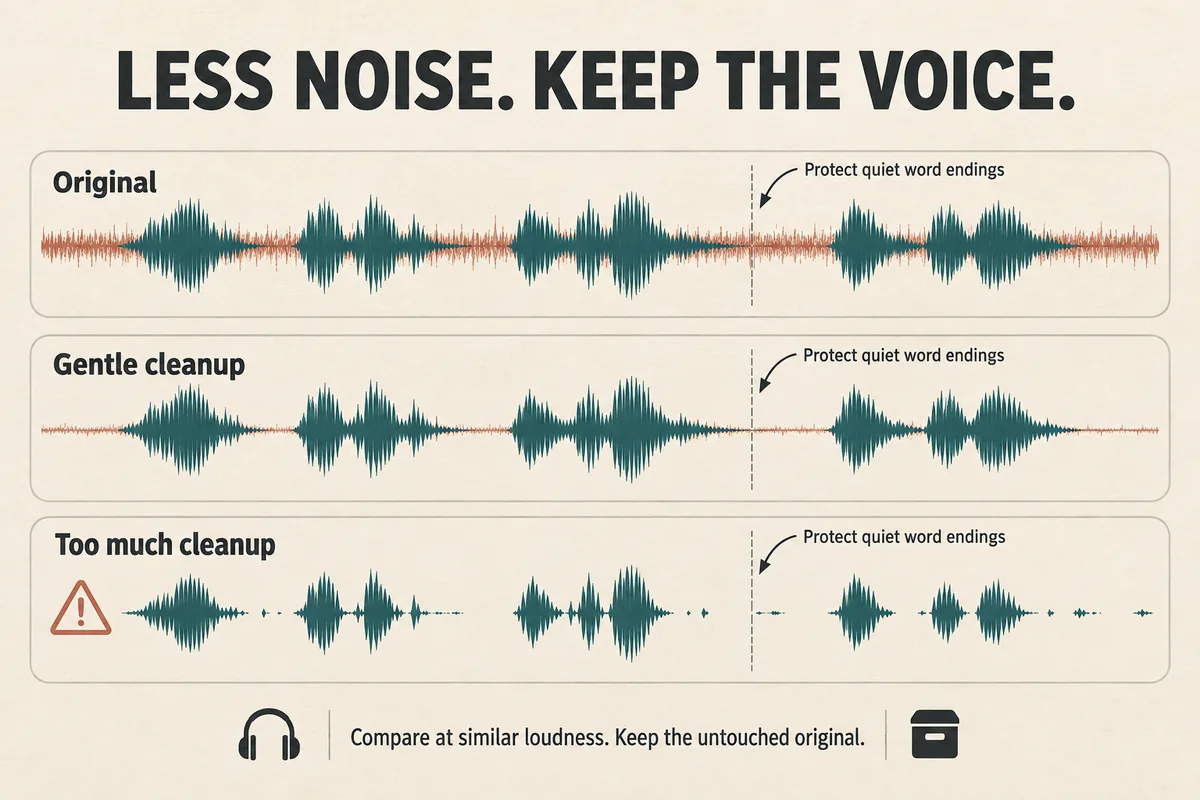
To remove background noise from a voice recording, identify the noise first, keep an untouched copy, and apply the smallest correction that improves the speech. A steady fan, an isolated click, and room echo are different problems. Running every file through the same strong cleanup setting can make an otherwise usable voice sound worse.
For voice cloning, rerecording in a better position is often the simplest option when you still have access to the speaker. When you cannot rerecord, the goal is clear, intact speech—not a perfectly silent waveform at any cost.
Identify what you are actually hearing
Listen to a quiet gap, a soft sentence, and a loud sentence. Write a plain description of the issue: “steady low hum,” “keyboard clicks between words,” or “voice sounds as if it is in a hallway.”
That description points you toward a useful first move:
- A steady hiss or fan suggests testing noise reduction.
- A few isolated clicks suggest local repairs or careful edits.
- Another person speaking over the narrator suggests replacing the affected passage.
- A hollow tail after words suggests room reflections.
- Harshness only on loud syllables suggests a recording-level problem.
Audacity describes its noise reduction effect as suitable for fairly constant noise and distinguishes that from irregular sounds such as audience noise. Its manual is useful when deciding whether that particular effect matches the problem.
Do not start by stacking effects. First determine whether the noise occurs throughout the file or only in a small section.
Preserve an original and choose a test section
Duplicate the recording before making changes. Label the files clearly, such as “reference-original” and “reference-cleanup-test.” Work in an audio editor that lets you preview and undo the processing.
Choose a test section with all three of these elements: a quiet gap, normal speech, and a word ending in a soft consonant. A section containing only silence tells you whether the background became quieter, but tells you nothing about damage to the voice.
Write down what you want to improve before previewing. For example: “Make the fan less distracting while keeping the ends of ‘first’ and ‘next’ clear.” This is a much better target than “make it professional.”
Compare at similar playback loudness. A louder version can feel more impressive even if it contains the same noise or more damage.
Reduce steady noise in small steps
If your editor uses a noise profile, select a section that contains the unwanted background without speech. Apply a modest amount of reduction to the test section, then listen again.
Check the actual words, especially quiet endings. If the voice develops a watery, metallic, or hollow texture, reduce the amount of processing. The best setting may leave a little audible background.
Where the editor offers a way to hear what is being removed, use it. Recognizable pieces of speech in that removed signal are a reason to back off. Audacity's documentation describes this preview approach and warns that overly strong reduction can harm the remaining audio. Noise reduction controls.
Once a test sounds better, apply the same approach to the necessary region and review the complete file. Noise can change when an appliance switches on or someone opens a door, so one sample of background may not represent an entire session.
Handle interruptions locally
A chair squeak between sentences does not require heavy processing of every word. Trim or reduce the affected gap, then check that the transition still feels natural. Avoid cutting tightly against the beginning of a word.
If a click overlaps a syllable, compare a local repair with a replacement take. The replacement may be quicker and clearer. Keep a little surrounding phrase when recording again so the tone and pace have a chance to match.
For narration, you can sometimes replace a full sentence in a video editor. For a voice cloning reference, selecting a different continuous clean excerpt can be simpler than constructing a patchwork sample.
Do not mute every small pause automatically. Abrupt changes between complete silence and a noisy voice can be distracting. Listen in context, including the sentence before and after the edit.
Know when cleanup is the wrong solution
Suppose a recording contains a desk fan under every sentence and a loud door slam across one important word. Gentle noise reduction might help with the fan. It will not reliably reconstruct the covered word. Use another take for that passage.
A recording with strong room echo also deserves a different decision. If the speaker can record again, move the setup and compare a short test. The voice sample recording guide shows how to evaluate that change before committing to a full take.
The same principle applies to distortion. If a loud phrase already sounds broken in the original, lowering its playback volume makes the broken phrase quieter; it does not prove that the recording has been repaired.
Treat persistent defects as evidence about the source, not as a challenge to add more effects.
Export and check the actual deliverable
Save a high-quality working copy before creating the version required by your destination. Repeatedly exporting through a compressed format adds unnecessary uncertainty to an already delicate cleanup job. The WAV versus MP3 guide explains how to keep a sensible master file.
Open the exported file itself. Listen to the start, the repaired passage, and the ending. Confirm that no word was cut off and that the correct version was exported.
For a cloned voice, compare a short generation before and after changing the reference, keeping the test text the same. Do not assume a quieter source automatically produces the better result. If the generated speech has its own buzzes, clicks, or missing syllables, use the separate AI voice artifact troubleshooting guide.
Common audio cleanup questions
Should the spaces between words be silent? They do not need to be completely silent. Judge whether the background distracts from the message and whether the voice remains intact.
Can I remove music underneath speech? Results depend on the recording and tool. For an important reference, find a clean source or record again when possible. Listen closely before accepting separation artifacts.
Should I normalize before judging the cleanup? You can adjust playback for a fair comparison, but keep the comparison consistent. The important question is whether you improved intelligibility and reduced distraction at a similar listening level.
Try Our Voice Clone Demo
Hear your words come to life
Choose a voice and try a short preview.
Listen to sample voices
Hear examples before choosing a voice. Generated results can vary with the script and reference sample.
Looking for another voice?
Explore the library and listen to a sample before you create.

Morgan Freeman

Stephen Hawking

Christiano Ronaldo

Donald Trump

Kokoro

Disney XD Announcer

Cute Japanese Girl
Vin

Adam Stone
Transform Your Content with AI Voice Technology Today
Try a short voice preview, then create speech and save your audio in a workspace built for your next project.
Generate Your Voice Now